
Join-In Pro toolbars are designed to make it easier to find and use the actions you need within supported apps. This guide explains how the toolbars are organized, where to find additional functions, and how to access common tools and settings.
Each app has its own toolbar with actions designed for that app. For example, WhatsApp includes tools for moving between chats and messages, reacting to messages, typing messages and making calls, while YouTube, Gmail and other apps provide different app-specific actions.
At the same time, familiar Join-In Pro tools such as Utilities and Preferences are available across supported apps. This creates a more consistent way to navigate, adjust settings and access common tools when moving between different apps.
The examples on this page show the Full toolbar in WhatsApp. The exact buttons and layout may look different depending on the app, toolbar, Stage, access method and settings.
The Main Toolbar
The Main Toolbar contains the actions you are most likely to use during the current activity.
For example, the WhatsApp Full toolbar provides quick access to actions for:
- moving between chats and messages
- scrolling through a conversation
- opening links
- reacting to messages
- composing and sending messages
- making video calls

It also provides access to the Menu, where additional functions and Join-In Pro tools can be found.
The Main Toolbar is different for each supported app so that the most useful actions for that activity are readily available.
Some buttons are only available in particular situations. When an action cannot currently be used, its button may appear greyed out.
Finding More Functions
Not every function needs to be visible on the Main Toolbar.
Select Menu to find additional functions for the current app and access general Join-In Pro tools.
For example, the WhatsApp Menu includes options for searching or starting a chat, going to the top of a conversation, searching within a chat, browsing contacts and viewing starred messages. It also provides access to More, Utilities and Preferences, as well as options for exiting or minimizing the app.
Some buttons lead to additional screens containing less frequently used or more advanced functions. In WhatsApp, for example, these include actions for copying, translating, editing or starring messages and managing chats and contacts.
These secondary functions are app-specific. Other supported apps will have different actions relevant to the activities they support.
This layered structure keeps frequently used actions within easy reach while still providing access to a wider range of features when they are needed.
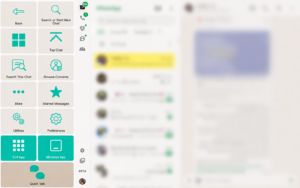
Utilities
Utilities provides general navigation and interaction controls that can be useful across supported apps.
Depending on the app and your setup, these may include:
- Close Tab – close the current browser tab.
- ESC – perform the Escape command, for example to close certain menus or pop-ups.
- Recover – help restore access if an app or webpage is no longer responding as expected within Join-In Pro.
- Previous Field / Next Field – move between fields or other selectable elements.
- Keyboard – open the on-screen keyboard.
- Space – perform the keyboard Space command.
- Enter – perform the Enter command.
- Up / Down – move or scroll up and down.
Utilities make common computer controls available directly through Join-In Pro. They can be particularly useful for people using eye gaze, switch access or other alternative access methods.
The exact Utilities available may vary according to the app, toolbar and access setup.

Preferences
Preferences provides quick access to tools for adjusting and personalizing the Join-In Pro experience while you are using an app.
Depending on your setup, options may include:
- Zoom – enlarge the app or website content.
- Volume Control – adjust the computer’s sound level.
- Toggle Touch Access – turn direct touch access on or off.
- Auto Read – automatically read selected content aloud. The button shows whether Auto Read is currently on or off.
- Dark Mode – switch between light and dark display modes.
- Font Size – adjust text size.
- Stages – adjust which features are currently available.
- Edit My Lists – create and edit personalized lists used within Join-In Pro.
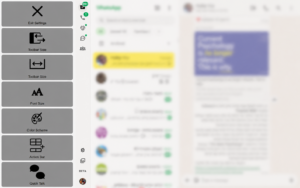
- Toolbar Settings – customize the appearance, layout and optional Action Bar.
The options shown may vary depending on the app and your Join-In Pro configuration.

Toolbar Settings
Open Preferences → Toolbar Settings to make changes to the toolbar while you are using an app.
Depending on your setup, you can adjust:
- Toolbar Side – choose whether the toolbar appears on the left or right side of the screen.
- Toolbar Size – adjust the size of the toolbar and its buttons.
- Font Size – adjust the size of the text displayed on toolbar buttons.
- Color Scheme – choose a different toolbar color scheme.
- Action Bar – configure an optional extra row for quick access to selected actions.
Select Exit Settings when you have finished making changes.
Settings Are Also Available from Join-In Pro Settings
Most of these options can also be configured from the main Join-In Pro Settings.
For example, the View section of Join-In Pro Settings includes options for the toolbar type, toolbar side, toolbar size, color scheme, font size, icon display and Action Bar, as well as other display and interface settings.
The in-app Preferences and Toolbar Settings provide convenient access to commonly used options while you are using an app. The main Join-In Pro Settings provides access to these settings as part of the wider configuration of Join-In Pro.
Changes to shared settings apply to your Join-In Pro configuration, regardless of where you make them.
The Action Bar
The Action Bar is an optional extra row that can be added to the toolbar. It keeps selected actions readily available as you move between different screens and toolbars.
You can choose to include:
- Quick Talk – quickly open your preferred Join-In Pro keyboard or AAC vocabulary to communicate with someone nearby.
- Rest – temporarily pause access when you want to rest or look away from the screen.
- Quick Talk and Rest – include both actions.
- Neither – use the toolbar without the additional Action Bar.
Quick Talk
Quick Talk provides fast access to face-to-face communication. It temporarily takes you away from your current activity and then returns you to where you left off when you are finished.
For example, a user can be browsing WhatsApp, watching YouTube or reading an email and open Quick Talk when they want to communicate with someone nearby. When finished, they can return to the activity they were doing.
Quick Talk can be added to the optional Action Bar through Preferences → Toolbar Settings → Action Bar.
Rest
Rest provides a quick way to temporarily pause access without closing the current app or activity. This can be particularly useful with access methods such as eye gaze, where a user may want to look around or take a break without making selections.
Rest can be added to the Action Bar through Preferences → Toolbar Settings → Action Bar.
Toolbars Adapt to the App and User
You will not always see exactly the same toolbar.
Join-In Pro toolbars can vary according to:
- the app you are using
- where you are within the app
- the toolbar you have selected
- your current Stage
- your access method
- your Join-In Pro settings
Buttons may appear or become available only when they are relevant. Actions that cannot currently be used may appear greyed out.
The screenshots in our guides are therefore examples and may look slightly different from what you see on your own computer.
Familiar Tools Across Different Apps
Although app-specific actions change, the overall approach remains familiar.
App functions help you perform activities within WhatsApp, YouTube, Gmail and other supported apps.
Utilities provide general tools for navigating and interacting with apps and websites.
Preferences let you adjust and personalize your Join-In Pro experience.
Toolbar Settings let you customize the toolbar and optional Action Bar.
Quick Talk and Rest can be added to the Action Bar when you want these actions to remain readily available.
This combination gives users access to the features of mainstream apps while providing a more consistent and accessible way to use them through Join-In Pro.
