
Before using Join-In Pro with Alea IntelliGaze, you will need to adjust a few settings in both IntelliGaze and Join-In Pro.
Configure the Join-In Pro Application Profile
IntelliGaze allows application-specific profiles, enabling different settings to be used for different programs. Join-In Pro includes its own application profile, allowing IntelliGaze to be optimized specifically for Join-In Pro.
1. Open the Join-In Pro Profile
- Launch IntelliGaze.
- Open Join-In Pro.
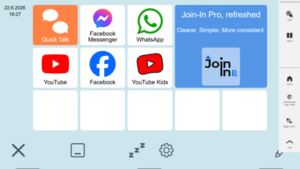
- Locate the Join-In Pro Application Profile within IntelliGaze.
Join-In Pro Application Profile
The Join-In Pro profile appears in the IntelliGaze Application Profiles list.
2. Open Profile Settings
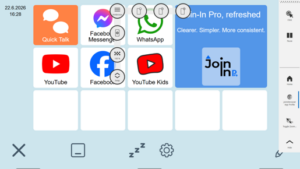
- Select the menu button (three horizontal lines).
- Choose Settings.
Opening Profile Settings
Open the Application Profile settings menu.
3. Navigate to the Third Settings Page
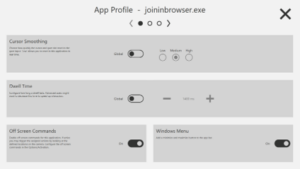
Use the arrow buttons to move through the settings pages until you reach the third page.
IntelliGaze Settings Page 3
Navigate to the third settings page using the arrow controls.
Configure IntelliGaze for Join-In Pro
Adjust the following settings:
Enable Live Mouse Mode
Turn on Live Mouse Mode.
This allows eye gaze to control the mouse cursor within Join-In Pro.
Configure Click Activation
The correct setting depends on the activation method being used.
If using Click Activation:
- Enable Live Mouse Click.
This allows click selections to be performed while controlling the cursor.
If using Dwell Activation:
- Disable Live Mouse Click.
Hide the Operation Bar
Enable Hide Action Bar.
This prevents the IntelliGaze toolbar from covering content or controls within Join-In Pro.
Recommended IntelliGaze Settings
Cursor Movement enabled, Click in Cursor Movement Mode configured as required, and the Action Bar hidden.
Once these three settings have been configured, IntelliGaze is ready to work with Join-In Pro.
Hide the Application Profile Panel
After configuration is complete, the Application Profile panel can be hidden.
- Open the View menu.
- Disable Application Profile.
The selected settings remain active even when the profile panel is hidden.
Hiding the Application Profile Panel
Turn off the Application Profile display to maximize screen space.
Verify Join-In Pro Access Settings
Before starting, confirm that Join-In Pro is configured to use the correct access method.
- Open Settings in Join-In Pro.
- Select Accessibility.
- Set the access method to Eye Gaze.
- Select the appropriate activation mode:
- Click when using blink or switch activation.
- Dwell when using dwell activation.
- Save the settings.
Join-In Pro Accessibility Settings
Eye Gaze selected as the access method with the appropriate activation mode.
Start Using Join-In Pro
Your setup is now complete.
You can begin using Join-In Pro with Alea IntelliGaze to browse supported websites, access apps, communicate, and participate in digital activities using eye gaze control.
